First post in the series of Flutter and Google Maps. In this post, I will cover how to setup Google Maps and prepare your Flutter project to use gmaps.
Table of contents
Open Table of contents
Google Cloud Platform
Create a project
First, you need to create a project in Google Cloud Platform. Go to Google Cloud Platform and create a new project.
If you already have a project, you can use it, select it from dropdown in the top bar.
Enable Maps API
In the Navigation menu, go to Google Maps Platform.
On the first open you will be proposed to setup Google Maps Platform.
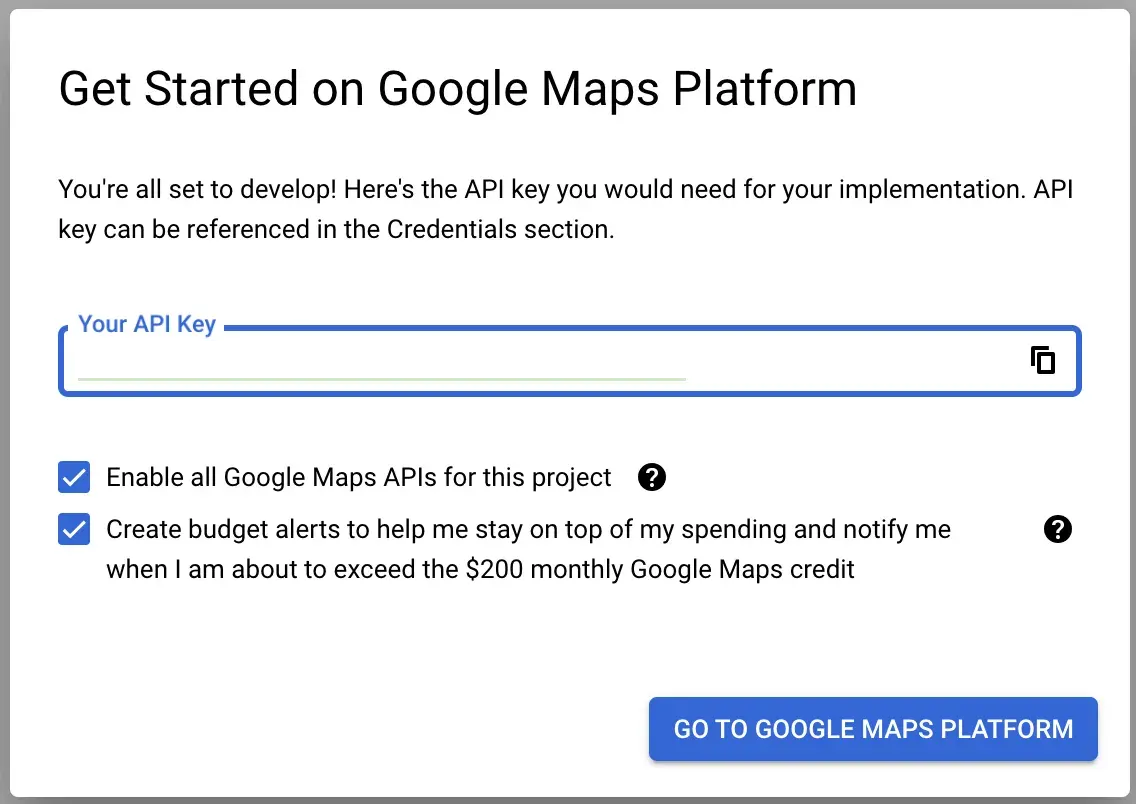
Copy your API key, you will need it in the next step.
Keep both Enable all Google Maps APIs for this project and Create budget alerts... checked and click on GO TO GOOGLE MAPS PLATFORM button.
Once a Platform setup task is done, you will need to protect your key. For now you can use a simple IP Addresses restriction type with your public or local ip address. You can always change it later.
Now it’s time to enable maps API. Go to Google Maps Platform: APIs & Services and click on ENABLE button for next APIs:
- Maps SDK for Android - we will use it for Android app
- Maps SDK for iOS - this one will be used for iOS app
- Maps Static API - we will embed map static images in our app
- Geocoding API - this api will help us to convert address to coordinates and vice versa
Flutter project
Add dependencies for Flutter
Use flutter pub add command to add dependencies to your project.
http- we will use it to send rest api requests for Geocoding APIlocation- this package will help us to get user’s current locationflutter_dotenv- we will use it to store our API key in a.envfilegoogle_maps_flutter- this package will help us to embed Google Maps in our app
Setup Secrets
The main goal is to avoid submitting an API key to the source control and keep it in a safe place.
It will also prepare your project for CI/CD flow, where you can use different keys for different environments.
Setup Secrets for a Flutter project
For Flutter project, we will use flutter_dotenv package to store our API key in a .env file.
- create two new files in the root folder of your project:
.envand.env.example - add
.envfile to the.gitignorefile in the root folder - add
GOOGLE_MAPS_API_KEY=line to.env.examplefile. It will help to remember the key name - add
GOOGLE_MAPS_API_KEY=YOUR_API_KEY_VALUEline to.envfile. ReplaceYOUR_API_KEY_VALUEwith your real API key - open
main.dartfile and importflutter_dotenvpackage:import 'package:flutter_dotenv/flutter_dotenv.dart'; - add a new line at the beginning of the
main()method
await dotenv.load(fileName: ".env");- later in the code, you can access your API key with:
final String _apiKey = dotenv.get('GOOGLE_MAPS_API_KEY');Pretty simple setup for a Flutter project, compared to Native code.
Setup Secrets for Android and iOS
To correctly handle an API key in the Native code, we will need to make a couple of adjustments.
Android
Open article Secrets Gradle plugin.
Follow this article to install and setup com.google.android.libraries.mapsplatform.secrets-gradle-plugin:secrets-gradle-plugin in your Android project.
Note: Skip watching the video in this article, it’s not updated and you will need to redo the setup as in the article.
I won’t describe all the parts of the setup, but I will highlight the main steps:
- add a new dependency
com.google.android.libraries.mapsplatform.secrets-gradle-plugin:secrets-gradle-plugin:2.0.1(check a current version) to yourbuild.gradlefile in the root folder (right underandroid) - add a plugin
com.google.android.libraries.mapsplatform.secrets-gradle-plugininandroid/app/build.gradlefile - also in the same file, make sure
targetSdkandcompileSdkare set to34or the one that is recommended at the time you are reading this post. - create a new file
android/secrets.propertiesand add your API key there as akey=valuepair- you can follow example in the article and name key as
MAPS_API_KEYor use any other name, i.e.GOOGLE_MAPS_API_KEY - as a value you should use your API key, the one you copied from Google Maps Platform setup step
- you can follow example in the article and name key as
- add a new line
secrets.propertiesto.gitignorefile in the rootandroidfolder - update
local.defaults.propertiesfile in the same folder to includeMAPS_API_KEY=DEFAULT_API_KEYorGOOGLE_MAPS_API_KEY=DEFAULT_APIkey-value pair- Note: value
DEFAULT_API_KEYis intentional, don’t replace it with your real API key, this step helps to prevent build failure ifsecrets.propertiesfile is missing
- Note: value
- now navigate to
android/app/src/main/AndroidManifest.xmland add there a newmeta-datatag (for correct values check article) - finally, navigate to
android/app/build.gradleand findsecretsblock- if this section is missing - add it
- under
secretsadd two new lines:
propertiesFileName = "secrets.properties" defaultPropertiesFileName = "local.defaults.properties"Okay, that was a long list of actions, but check the article, it’s very well written, and you should be able to follow it without any issues.
iOS
iOS is a bit different from Android, but it’s still easy to setup.
My steps to setup iOS secrets are:
- create two files
Debug.xcconfigandRelease.xcconfigin theios/Flutterfolder - add
Debug.xcconfigto.gitignorefile in the rootiosfolder - open
Release.xcconfigand add a new lineGOOGLE_MAPS_API_KEY=$(GOOGLE_MAPS_API_KEY). Note:$(GOOGLE_MAPS_API_KEY)is evaluated value from environment variables of your or CI/CD runner system - open
Debug.xcconfigand add a new lineGOOGLE_MAPS_API_KEY=YOUR_API_KEY_VALUE. Note:YOUR_API_KEY_VALUEis your real API key, do not wrap it in quotes or use any other symbols. - open
Info.plistfile in theios/Runnerfolder and add a newkey-valuepair underdicttag (for convenience you can add it right above</dict>tag)
<key>googleMapsApiKey</key> # this value is important, we will access it in the code later <string>$(GOOGLE_MAPS_API_KEY)</string>- since we are in the
Info.plistfile, you can also add a newkey-valuepair forNSLocationWhenInUseUsageDescriptionto ask user for permission to use location services
<key>NSLocationWhenInUseUsageDescription</key> <string>Your current location.</string>- finally, open
AppDelegate.swiftfile in theios/Runnerfolder and add a new line in theapplicationmethod as a first line
GMSServices.provideAPIKey(Bundle.main.object(forInfoDictionaryKey:"googleMapsApiKey") as? String ?? "");And we are done setting up iOS secrets.
Conclusion
In this post, we have created a new project in Google Cloud Platform, enabled Maps API and setup protected handling of our API key both in the Flutter and Native code.
This setup will help you to avoid publishing your API key to the source control and prepare your project for CI/CD flow.